
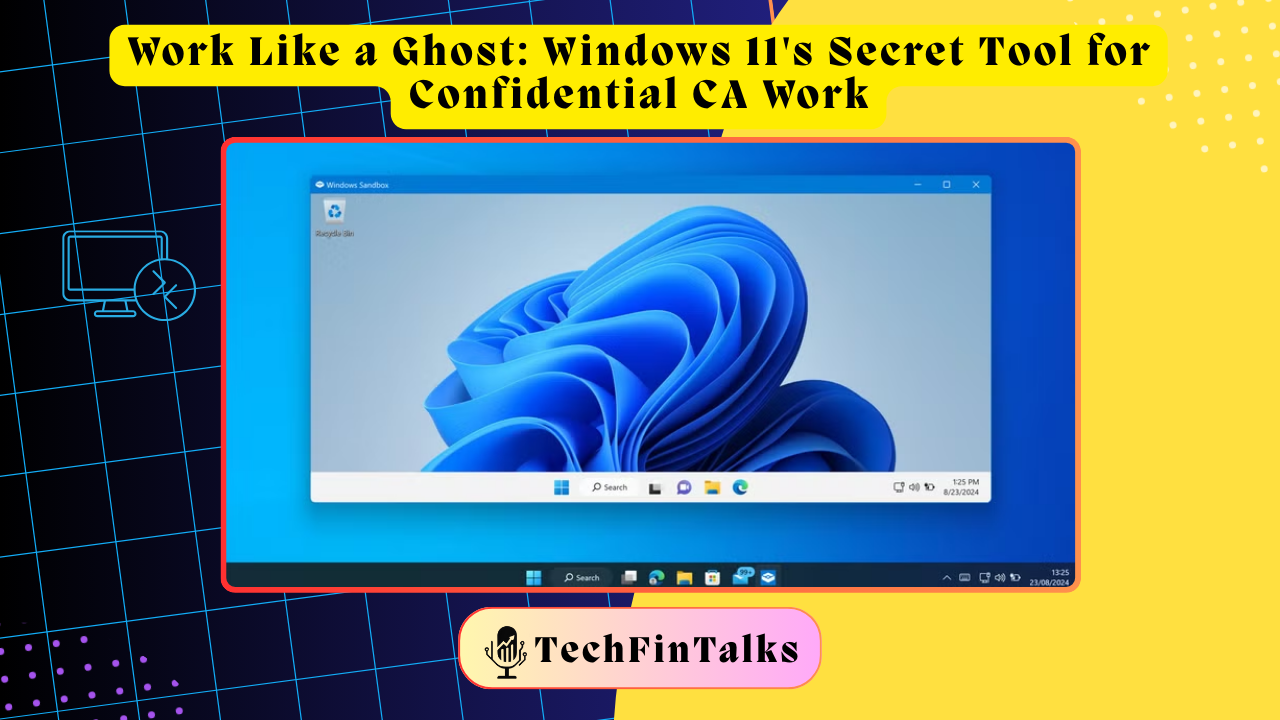
As Chartered Accountants, we deal with sensitive financial data daily. One wrong click on a suspicious email or one infected file from a client can compromise years of confidential information. What if I told you there’s a built-in Windows 11 feature that lets you work in complete isolation without leaving any digital footprints? Enter Windows Sandbox.
What Exactly Is Windows Sandbox?
Think of Windows Sandbox as a temporary, disposable computer inside your computer. It’s like having a secure testing lab where you can open files, browse websites, or install software without any risk to your actual system. The moment you close it, everything disappears. No traces, no leftovers, no problems.
Why Should CAs Care About This Feature?
1. Test Client Files Without Fear
Remember that Excel file a new client sent you via email? Before opening it on your main system where all your client data lives, open it first in Sandbox. If it contains malware or ransomware, your actual computer stays completely safe. The infected file gets deleted automatically when you close Sandbox.
Real scenario: A CA firm in Mumbai received what looked like an ITR form from a potential client. Opening it in Sandbox revealed it was actually ransomware disguised as a tax document. The firm avoided what could have been a disaster worth lakhs in recovery costs.
2. Work Privately on Sensitive Calculations
Sometimes you need to run quick calculations or create draft reports that you don’t want saved anywhere on your system. Maybe you’re exploring different tax planning scenarios for a client, or checking merger valuations that are highly confidential. Sandbox gives you a clean space where nothing gets recorded in your browsing history, recent files, or temp folders.
3. Install Unknown Software Without Commitment
Need to try a new accounting tool or tax software? Instead of cluttering your main system with trial versions that leave registry entries and hidden files even after uninstallation, test everything in Sandbox first. If you like it, then install it properly. If not, just close the Sandbox window and it’s gone forever.
4. Browse Questionable Websites Safely
Sometimes we need to verify vendor information on websites we’re not sure about, or check company details on portals that might not be secure. Sandbox lets you browse these sites without exposing your main system to potential threats. Even if the website tries to install tracking cookies or malware, nothing carries over to your actual computer.
5. Reduce Your Dependence on Heavy Antivirus Software
Here’s something most people don’t realize: when you handle risky tasks in Sandbox, you reduce the burden on your antivirus software. Your primary antivirus can focus on protecting your main system while Sandbox handles the experimental stuff. This means better performance and less resource consumption on your computer.
Some CAs even use Sandbox as their first line of defense. Anything unknown? Test it in Sandbox first. This approach has saved countless hours of dealing with malware cleanup and system recovery.
6. Zero Digital Footprints for Confidential Work
Every action you take on a computer leaves traces. Downloaded files, browsing history, temporary files, clipboard data, everything gets stored somewhere. For CAs handling merger negotiations, forensic audits, or sensitive tax matters, these digital footprints can be risky.
Sandbox solves this beautifully. Work done inside Sandbox leaves absolutely no trace on your hard drive. The moment you close it, it’s as if the work never happened on your computer. Perfect for situations where even the existence of certain calculations or documents needs to remain confidential.
7. Quick Testing Environment for Year End Processes
During busy seasons like March and April, you often need to test new versions of ITR utilities or updated GST software before using them for actual client filings. Sandbox gives you a risk free environment to ensure everything works correctly before you commit to using it for live data.
How to Enable Windows Sandbox (It’s Easier Than You Think)
Most CAs don’t know this feature exists because it comes disabled by default. Here’s how to turn it on:
Step 1: Press the Windows key and type “Turn Windows features on or off”
Step 2: Scroll down and check the box next to “Windows Sandbox”
Step 3: Click OK and restart your computer when prompted
Step 4: After restart, simply search for “Windows Sandbox” in the Start menu and click it
That’s it! You now have your own isolated environment ready to use.
Important Things to Remember
Nothing saves automatically. If you need to keep something you worked on in Sandbox, you must manually copy it to your main system before closing Sandbox. Otherwise, it’s gone forever. This is actually a feature, not a bug, for confidential work.
System requirements matter. Your computer needs Windows 11 Pro, Enterprise, or Education edition. Windows 11 Home doesn’t support Sandbox. Also, your processor must support virtualization (most modern processors do).
Internet access is available. Sandbox has internet connectivity by default, so you can download files, check websites, or access cloud services just like your normal system.
Performance depends on your hardware. Sandbox creates a virtual machine, so it uses some of your computer’s RAM and processing power. A computer with at least 8GB RAM and an SSD works best.
Practical Daily Uses for CAs
Morning routine: Before checking emails on your main system, open suspicious attachments first in Sandbox to verify they’re safe.
Client onboarding: When new clients send documents for the first time, always scan them in Sandbox before adding them to your file management system.
Software updates: Before updating critical software like Tally or tax utilities, test the new version in Sandbox to ensure it won’t break your workflows.
Confidential scenarios: When working on sensitive valuations or tax planning scenarios that involve trade secrets, use Sandbox so no traces remain on your system.
Research and verification: Need to check something on a forum or website you’re not familiar with? Do it in Sandbox to avoid tracking and potential security risks.
The Bottom Line
Windows Sandbox isn’t just another tech feature. For Chartered Accountants, it’s a practical tool that solves real problems we face daily: security risks, privacy concerns, and the need for confidential work environments. Best of all, it’s completely free and already built into your Windows 11 system.
In an era where data breaches and cyber attacks are becoming more sophisticated, having an isolated workspace isn’t just smart, it’s essential. Start using Sandbox today, and you’ll wonder how you ever worked without it.
The next time someone sends you a file you’re not sure about, or you need to work on something extremely confidential, remember: you have your own secure, disposable computer waiting inside your computer. Use it wisely, and practice safely.
Have you started using Windows Sandbox in your practice? What other security tips do you follow as a CA? Share your thoughts in the comments below.

Chartered Accountant | Techies | AI Enthusiast | RPA | Unlocking Digital Success Incognito | Google AdSense & Programmatic Ads | Dancing Meditator | Nature Trekker⛰️