
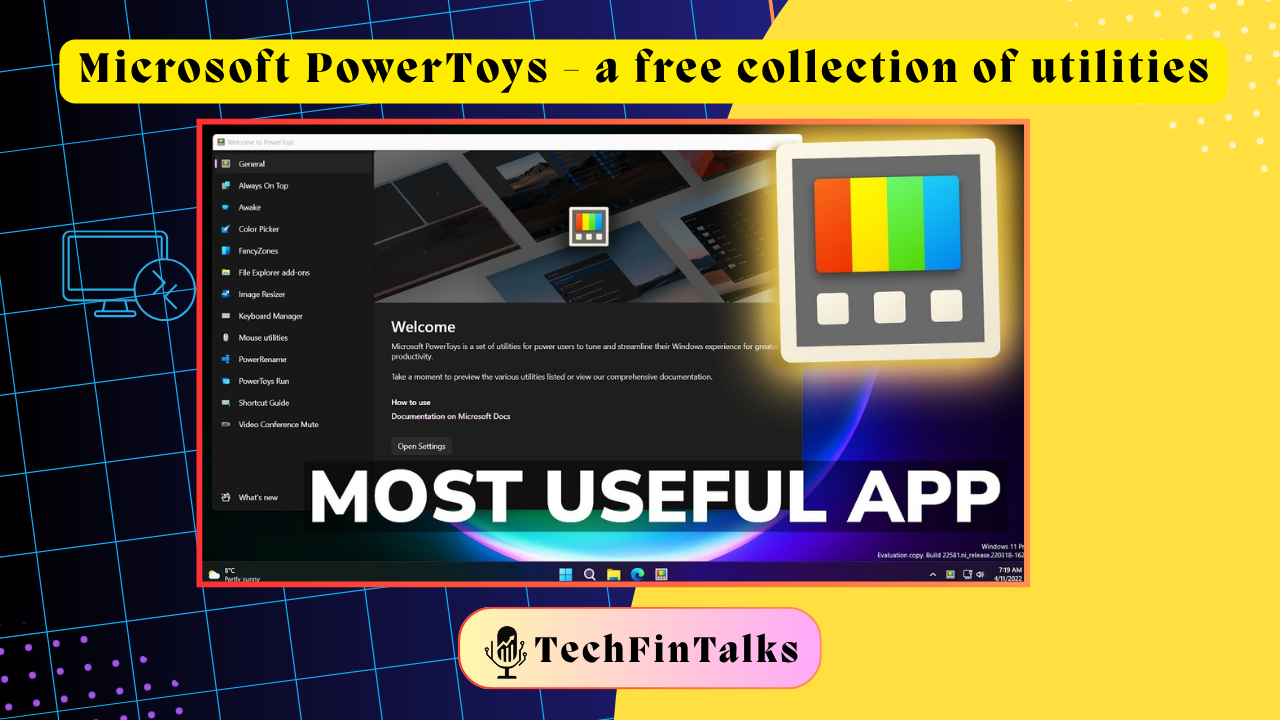
What is PowerToys?
Imagine if Windows had a “Pro Mode” that Microsoft forgot to turn on. PowerToys is exactly that – a collection of powerful utilities created by Microsoft themselves, completely FREE, that supercharges your Windows experience.
Best part? It’s official Microsoft software, so it’s safe, regularly updated, and won’t slow down your PC.
Download: microsoft.com/powertoys (30 MB, 2-minute install)
Why CAs Need PowerToys
During audit season, you’re juggling:
- 50+ Excel files across multiple folders
- PDFs from clients via WhatsApp, email, and portals
- Screenshots for working papers
- Multiple windows open simultaneously
- Constant switching between tasks
PowerToys makes ALL of this 10x easier. Let me show you how.
12 PowerToys Features That Will Change Your CA Life
1. PowerToys Run (The Ultimate Shortcut)
What it does: Search and open ANYTHING with Alt + Space
For CAs:
- Type “TDS” → Instantly opens your TDS folder
- Type “calc” → Calculator appears
- Type “Client ABC” → Opens all related files
- Type “= 125000 * 0.18” → Does GST calculation instantly
Example Use Case:
Client calls asking about their Q2 GST filing. Instead of clicking through folders:
- Press
Alt + Space - Type “ABC Q2 GST”
- Hit Enter
- File opens in 2 seconds
Time Saved: 5-10 minutes daily searching for files = 30-50 hours yearly
Pro Tip: Works even with spelling mistakes (types “clint” finds “client”)
2. FancyZones (Window Organization Magic)
What it does: Snap windows into custom layouts with one drag
For CAs:
Create a layout with Excel taking 70% of the screen on the left, and PDF documents and WhatsApp Web splitting the right 30%.
How to Use:
- Hold
Shiftwhile dragging a window - Choose your zone
- Window snaps perfectly
Example Use Case:
Reconciling bank statements:
- Left: Excel with your reconciliation sheet (70% screen)
- Top-right: PDF bank statement (30% screen)
- Bottom-right: Calculator or WhatsApp for client queries
Time Saved: 15 minutes daily arranging windows = 60 hours yearly
CA Benefit: During virtual audits, keep Zoom, Excel, and client docs all visible simultaneously
3. Text Extractor (Copy Text from Anywhere)
What it does: Press Win + Shift + T, select any text on screen (even from images/PDFs), and copy it
For CAs – This is GOLD:
- Extract GSTIN from scanned certificates
- Copy invoice numbers from PDF screenshots
- Grab PAN details from images sent by clients
- Extract bank account numbers from photos
Example Use Case:
Client sends photo of cancelled cheque via WhatsApp:
- Open image
- Press
Win + Shift + T - Select account number
- Paste directly into your Excel
No more manual typing!
Time Saved: 20-30 minutes weekly = 20 hours yearly
CA Benefit: Reduces typing errors in critical financial data
4. Color Picker (For Better Excel Formatting)
What it does: Press Win + Shift + C to grab any color on your screen
For CAs:
- Match client’s brand colors in reports
- Copy exact color codes from templates
- Create consistent Excel dashboards
- Replicate color schemes from competitor reports
Example Use Case:
Client wants their financial dashboard in company colors:
- Open their website/logo
- Press
Win + Shift + C - Click on their brand color
- Get exact HEX code (#1A73E8)
- Apply in Excel
Time Saved: 10 minutes per customized report
5. PowerRename (Batch Rename Like a Pro)
What it does: Rename hundreds of files at once with search and replace
For CAs:
Rename messy files from clients:
Before:
IMG_20240315.pdf
IMG_20240316.pdf
WhatsApp Image 2024-03-17.pdf
After (in 10 seconds):
ABC_Ltd_Invoice_2024-03-15.pdf
ABC_Ltd_Invoice_2024-03-16.pdf
ABC_Ltd_Invoice_2024-03-17.pdf
How to Use:
- Select all files
- Right-click → PowerRename
- Search for: “IMG_”
- Replace with: “ClientName_Invoice_”
- Preview changes
- Click Rename
Example Use Case:
Client dumps 200 expense bills in a folder with random names. Rename all at once before uploading to tax software.
Time Saved: 30 minutes per client = Huge during audit season
6. File Explorer Add-ons (Preview Everything)
What it does: Preview files WITHOUT opening them
For CAs:
- Hover over PDF → See thumbnail
- Select Excel → Preview in side panel
- Check file content instantly
Example Use Case:
You have 50 PDFs named “Statement_1.pdf” through “Statement_50.pdf”
Instead of opening each one:
- Enable Preview Pane in File Explorer
- Click once on file
- Preview shows on right
- Arrow down through all files
- Find what you need in seconds
Time Saved: 15-20 minutes daily = 50-60 hours yearly
7. Image Resizer (Quick File Size Reduction)
What it does: Resize images before emailing to clients
For CAs:
- Right-click image(s)
- Select “Resize pictures”
- Choose size
- Done!
Example Use Case:
Need to email 20 site visit photos to client, but total size is 50 MB.
- Select all images
- Right-click → Resize pictures → Medium (1024px)
- New size: 3 MB
- Email sends instantly
Time Saved: 5 minutes per email with attachments
8. Always on Top (Keep Critical Info Visible)
What it does: Press Win + Ctrl + T to pin any window on top of others
For CAs:
- Keep calculator always visible while working in Excel
- Pin client’s rate sheet while preparing invoice
- Keep tax slab reference on top during ITR filing
Example Use Case:
Computing TDS on multiple transactions:
- Open TDS rate chart in browser
- Press
Win + Ctrl + Tto pin it - Work in Excel
- Reference stays visible
No more Alt+Tab 100 times!
Time Saved: 10-15 minutes per task requiring reference data
9. Keyboard Manager (Create Custom Shortcuts)
What it does: Remap keys and create custom shortcuts
For CAs – Super Useful Examples:
Remap unused keys:
- CapsLock → Backspace (thumb is closer than reaching for backspace)
- Right Ctrl → Calculator
Create shortcuts for phrases:
-
Win + G→ Types your full GSTIN -
Win + P→ Types your firm’s PAN -
Win + A→ Opens your most-used Excel template
Example Use Case:
You type your firm’s email 50 times daily:
- Set shortcut:
Win + E - Types: “ca.yourname@firmname.com”
- Instant productivity boost
Time Saved: 5-10 minutes daily
10. Quick Accent (Type Special Characters Easily)
What it does: Hold any key to see accent variations
For CAs:
Not just for accents! Get symbols quickly:
- Hold
-get → – (en dash), — (em dash) - Hold
eget → ₹ (rupee symbol – on some keyboards) - Useful for client names with special characters
Example Use Case:
Client name: “Café Bangalore Pvt. Ltd.”
- Type Caf
- Hold
e - Select
é
11. Mouse Utilities (Find Your Cursor)
What it does:
- Find cursor: Double-press Ctrl → Spotlight appears
- Highlight clicks: Shows visual feedback when clicking
- Crosshairs: Press Ctrl key to show crosshairs
For CAs:
- During screen sharing with clients: They can see where you’re clicking
- Multiple monitors: Never lose cursor again
- Presenting to partners: Highlight important clicks
Example Use Case:
Screen sharing during virtual audit:
- Enable “Highlight left clicks”
- Client sees exactly what you’re clicking
- Reduces “Click where?” questions
12. Screen Ruler (Measure Anything)
What it does: Press Win + Shift + M to measure pixels on screen
For CAs:
- Ensure Excel cells are same width for professional reports
- Check if signature boxes align in PDF forms
- Verify logo sizes in letterheads
Example Use Case:
Creating template for client reports:
- Measure column widths for consistency
- Ensure header/footer spacing is identical
- Professional-looking documents every time
Bonus Features Worth Knowing
13. Paste as Plain Text
Press Ctrl + Win + Alt + V → Pastes without formatting
CA Use: Copy from websites/PDFs into Excel without mess
14. File Locksmith
Right-click file → “What’s using this file?”
CA Use: Find out which program is blocking your Excel file from saving
15. Hosts File Editor
Block distracting websites during work
CA Use: Block social media during return filing season
How to Install & Setup (5 Minutes)
Step 1: Download
- Go to: microsoft.com/powertoys
- Click Download
- Install (it’s safe – made by Microsoft)
Step 2: Essential Settings
- Open PowerToys
- Enable these first:
- ✅ PowerToys Run
- ✅ FancyZones
- ✅ Text Extractor
- ✅ PowerRename
- Configure shortcuts (optional)
Step 3: Learn One Feature Per Week
- Week 1: Master PowerToys Run
- Week 2: Setup FancyZones
- Week 3: Use Text Extractor
- Gradually adopt others
CA-Specific PowerToys Setup Guide
For Tax Filing Season:
Enable:
- ✅ PowerToys Run (quick file access)
- ✅ Text Extractor (OCR from documents)
- ✅ Always on Top (tax slabs visible)
- ✅ Mouse Utilities (screen sharing)
For Audit Work:
Enable:
- ✅ FancyZones (multiple docs visible)
- ✅ PowerRename (organize client files)
- ✅ File Explorer Add-ons (preview PDFs)
- ✅ Image Resizer (compress site photos)
For Report Preparation:
Enable:
- ✅ Color Picker (brand colors)
- ✅ Screen Ruler (alignment)
- ✅ Keyboard Manager (firm details)
- ✅ Paste as Plain Text (clean formatting)
Common Questions
Q: Will it slow down my PC?
A: No. Uses minimal resources (50-100 MB RAM). You won’t notice any difference.
Q: Is it safe for client data?
A: Yes. It’s official Microsoft software. Doesn’t send data anywhere. Works offline.
Q: Do I need admin rights to install?
A: Yes, but only during installation. After that, works with regular user account.
Q: Can I use it on office PC?
A: Check with your IT team first. Most allow it since it’s Microsoft software.
Q: Which features should I start with?
A: Start with PowerToys Run and Text Extractor. These give maximum immediate benefit.
Pro Tips for CAs
1. Create FancyZones Templates for Different Tasks
- Template 1: Audit work (Excel + PDF side-by-side)
- Template 2: Filing returns (Form + Reference docs)
- Template 3: Client calls (Zoom + Notes + Files)
2. Use PowerToys Run for Quick Calculations
Type “=” before any math:
-
= 125000 * 0.18→ GST amount -
= 50000 / 12→ Monthly EMI -
= (500000 - 250000) * 0.20→ Tax calculation
3. Map Frequently Used Folders
PowerToys Run learns your patterns:
- Type “tds” → Opens TDS folder
- Type “gst” → Opens GST folder
- Type “abc” → Opens ABC Client folder
4. Combine with Task Scheduler
Schedule PowerToys to launch specific apps at 9 AM:
- Excel template
- Client folder
- Calculator
- All ready when you arrive
Troubleshooting
Problem: PowerToys Run not appearing
Solution: Check if Alt + Space is mapped elsewhere. Change shortcut in settings.
Problem: Text Extractor not working
Solution: Install Windows OCR language pack (Settings → Language → Add features)
Problem: FancyZones not snapping
Solution: Hold Shift key while dragging window. Zone editor might need reconfiguration.
PowerToys is like having a personal assistant who:
- ✅ Never takes leave
- ✅ Works 24/7
- ✅ Costs nothing
- ✅ Never makes mistakes
- ✅ Gets better over time (regular updates)
Share this with every CA you know. They’ll thank you later!

Chartered Accountant | Techies | AI Enthusiast | RPA | Unlocking Digital Success Incognito | Google AdSense & Programmatic Ads | Dancing Meditator | Nature Trekker⛰️